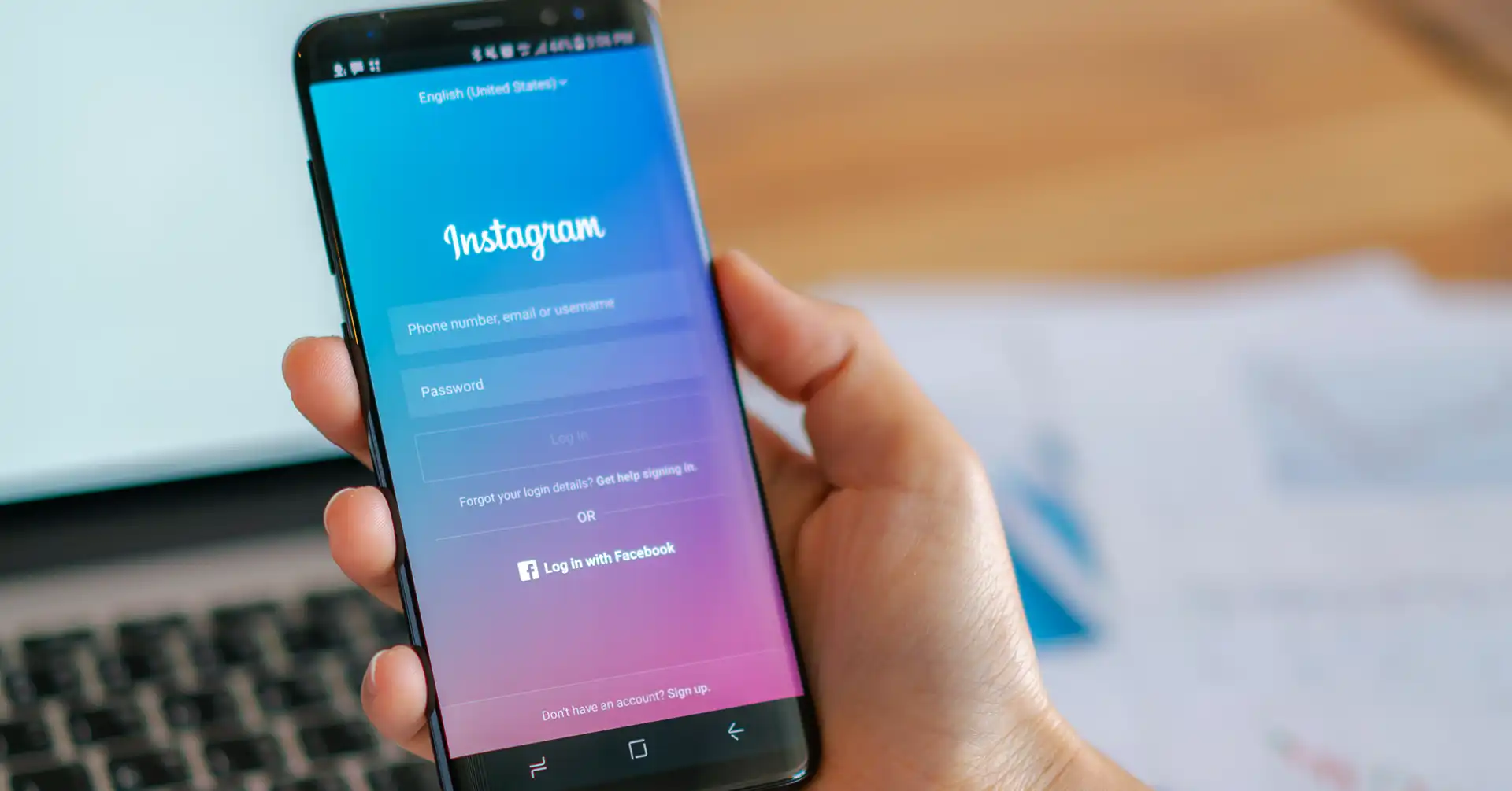
Do you often find yourself in a situation where you try to open Instagram in Chrome, and it suddenly dawns on you that your password is nowhere to be found? Or the other way around: you have Chrome to thank for remembering your password, but now you are lost regarding how to securely open or control it? If the answer is yes, then you are one of many. Chrome is the go-to browser that a number of users across the globe trust to keep their passwords for easy access. Still, it is very important to manage and secure your Instagram login Chrome password because of the trade-off of accessibility for environment and security at the same time.
The whole subject of Instagram login password will be explored in this guide. You are to learn about everything from retrieving saved passwords, securing them, managing multiple accounts, and prevention tips to hacking. Whether you are just an Instagram user or a social media manager, the guide will be of great help to you.
What is the Password for Instagram Login in Chrome?
Before getting into the retrieval and management hints, it is necessary to clarify what the password for Instagram login in Chrome actually is. With Chrome, whenever you log into Instagram, the browser prompts you to save your password. The web browser stores it safely in your Google account.
By saving the passwords in Chrome, you don’t have to remember the Instagram login details anymore. You can log in instantly on any device where your Google account is allowed. This function is very beneficial for people with several accounts, as it cuts down login friction and thus makes switching between profiles smooth.
Why Use Chrome to Save Your Instagram Password?
Storing your login information in Google Chrome is considered a big step beyond simply being lazy; it is a matter of efficiency indeed. By saving the Instagram login Chrome password, you let the browser auto-fill its details for you each time you land on that website. This lets you avoid typing mistakes and the “incorrect password” screen’s frustration.
Moreover, Chrome’s Password Manager is highly integrated with your Google Account. It implies that the password you saved on your computer can also be on your Android phone or tablet. One thing leads to another, and this is how all your devices are on the same page, hence your social media life is like a breeze.
Why Managing Your Instagram Chrome Password Is Important?
The importance of managing the Instagram login Chrome password is often unnoticed by users, but it can dramatically decrease security risks. Let’s have a look at some reasons why management is so important:
Prevent Unauthorized Access
If a person gets hold of your Google account, he/she will have access to saved passwords, including Instagram. So, proper management will lower the risk.
Easy Account Recovery
Passwords forgotten are a frequent issue. Knowing the method to retrieve your Instagram login password from Chrome can save you time.
Multiple Account Management
Many users have different accounts for personal and business purposes on Instagram. Chrome handles the login information in an efficient manner.
Security Updates
You have to update and verify saved passwords once in a while to prevent your profile from being hacked.
It is essential to understand the importance of securing and protecting your Chrome passwords.
Steps to View and Manage Your Saved Passwords
There may be instances when you have to disclose the password eventually. For example, you might want to sign in on a friend’s machine or on a public computer. It is very easy and secure to get the saved “Instagram Chrome password“.
- Launch Chrome and click on the three vertical dots located in the upper-right corner.
- From the menu, select “Settings.”
- Click on “Autofill and passwords” on the sidebar to the left.
- Go to “Google Password Manager.”
- Type “Instagram” in the search bar.
Once you locate the entry, your username will be displayed. To access the password, click on the “eye” icon. For security reasons, Chrome will prompt you to input your computer’s Windows or Mac password (or use your fingerprint) before unveiling the Instagram login Chrome password. This way, even if another person is using your computer, they won’t be able to take your credentials easily.
How to Manage Multiple Instagram Accounts in Chrome?
Many people are using several Instagram accounts at the same time. The Chrome browser is a nice feature for managing many login details. You are able to change accounts so fast and easily. Offers:
- Save Multiple Passwords: Each user can have their own separate passwords stored in Chrome.
- Quick Account Change: Whenever you are on Instagram, Chrome will show you the saved usernames and passwords.
- Profile Management: It is convenient to access the storage in a well-organized way by making different Chrome profiles for personal and professional use.
These features enable you to manage your multiple Instagram Chrome password entries easily and securely without any mix-up.
Tips and Tricks for Protecting Your Instagram Login Chrome Password
When it comes to saved passwords, security is a top priority. Therefore, feel free to use the tips listed below for your Instagram Chrome password protection:
- Use Strong Passwords: A mix of letters, numbers, and special characters will make it much harder for hackers to guess your account.
- Enable Two-Factor Authentication (2FA): Even if someone has your Chrome password, 2FA still prevents unauthorized logins.
- Regularly Update Passwords: You must change or update your password occasionally for security reasons.
- Check for Breaches: Look for compromised passwords with the built-in security check feature of Chrome.
- Avoid Public Computers: If it is not absolutely necessary, do not log in to Instagram from public computers.
If you follow these practices, you can rest assured that your Instagram accounts will be safe and your Chrome passwords will be secured.
Steps to Export & Backup Instagram Chrome Password
At times, you might need to take a backup of your passwords to another device. In such cases, Chrome lets you export unsaved passwords:
- Navigate through Chrome Settings → Autofill → Passwords.
- Hit the three-dot menu beside “Saved Passwords.”
- Select Export Passwords and authenticate your device.
- Keep the exported file in a secure location.
The file comprises all saved passwords, including that for your login on Instagram via Chrome, so it should be kept extremely safe and treated with a lot of care.
Using Chrome Password Manager for Convenience
Chrome’s integrated password manager comes with multiple benefits for Instagram users:
- Auto-Fill Login: There’s no need for typing in credentials manually; Chrome will do it for you by automatically filling your Instagram login.
- Sync across Devices: Passwords that have been saved are synchronized to all gadgets where you have signed in with your Google account.
- Password Alerts: If there’s a chance that your Instagram password has been compromised, Chrome will alert you.
All that combined makes the Chrome browser a safe Instagram password manager without compromising security while on the loose.
Common Issues with the Instagram Chrome Password
Even with Chrome taking good care of your passwords, sometimes you will still face issues:
- Incorrect Autofill: At times, especially when there is more than one account, Chrome might autofill using the wrong credentials.
- Password Update: If you decide to update your Instagram password not via the Google Chrome browser, the stored password may be changed and will not be recognized.
- Sync Issues: Syncing of passwords may not be done properly if you are not signed in to your Google account.
It would be wise to always check that the password saved in Chrome for Instagram login is up to date and that the Chrome sync settings are on.
Best Practices for Instagram Chrome Password
The best practices listed below will allow you to get the maximum benefit from the password management feature of Chrome:
- Enable Chrome Sync: this function keeps your passwords in sync across all devices.
- Use a strong Master Google Account Password: It is to keep your saved passwords secured.
- Periodic Security Check-ups: The password check feature on Chrome can be used to detect weak or compromised passwords.
- Avoid Password Reuse: You are not supposed to use the same password for Instagram or other social media platforms.
- Always logout when using a shared device: This will stop anyone from getting into your Instagram account and reading your password stored in Chrome.
If you do these things, you will be sure that your Instagram login is secure and hassle-free.
Conclusion
Managing the passwords for your social networks should never be a hassle. The moment you know how to deal with your Instagram login Chrome password, it translates into time saved and reduced stress for you. The built-in tools of Chrome are robust, safe, and tailored to ease your daily life in this ever-digitizing world.
It doesn’t really matter whether you are an influential person with the highest reputation, a proprietor of a brand, or a person who loves pictures and shares them only with a select few; the handling of your password vault is something that has to be done. Just put aside a couple of minutes today for doing your settings check, changing your password, and finding a quicker and safer way to log in.
FAQs (Frequently Asked Questions)
Q1. What is the method to see the password of your Instagram account in Chrome?
To see the Instagram login Chrome password, navigate through the Chrome settings, then Autofill, and finally Passwords. After that, search for Instagram.
Q2. Is it a safe practice to keep your Instagram login password in Chrome?
Definitely, but only if your Google account password is strong and two-factor authentication is active.
Q3. Can you use Chrome for managing several Instagram accounts?
Yes, Chrome will keep separate credentials for each account.
Q4. What are the steps for exporting your Instagram login password from Chrome?
The route would be Chrome settings, then Autofill, Passwords, and finally Export Passwords.
Q5. What to do when your Instagram password saved on Chrome does not work?
Change the password in Chrome and make sure that syncing is turned on for all devices.